
Overview #
Prerequisite: Ensure both the TRO.Y and JOSH devices are connected to the same network.
Video Tutorial
!Important: Currently Josh AI will not import groups from TRO.Y, and RTS motors connected via Pegasus.
Steps for Integration via Auto-Discovery #
1: Log in to Josh Portal #
Log in to the JOSH Portal with your credentials.
2:Navigate to Configure Devices #
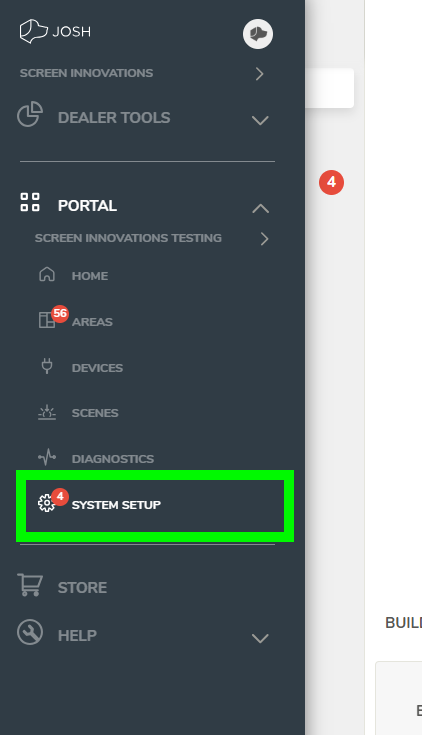
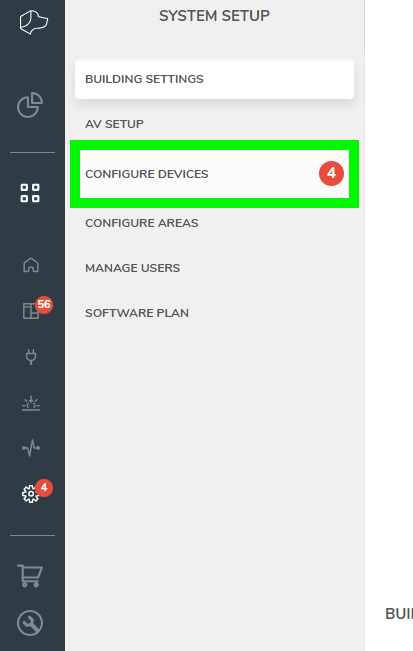
Navigate to Portal → System Setup → Configure Devices.
3: Check for Auto-Discovery #
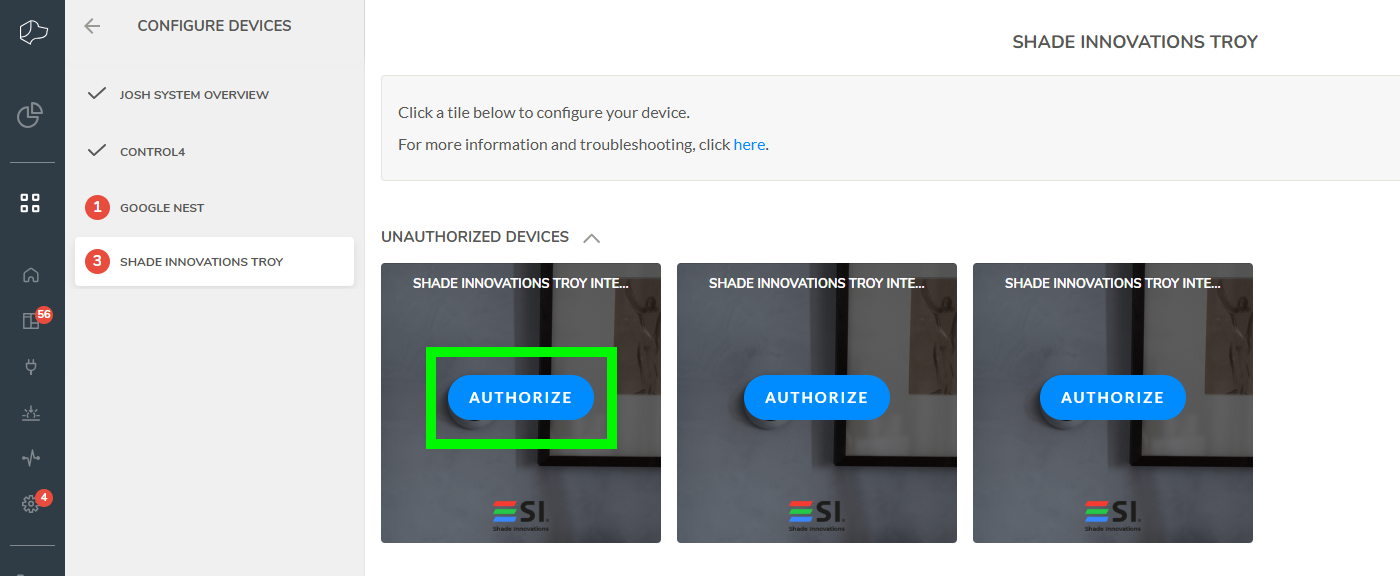
If the TRO.Y device was automatically discovered, it will appear in the Configure Devices list.
If your TRO.Y device was not automatically discovered, proceed to the Manual Integration section.
4: Authorize TRO.Y #
Select the Shade Innovations TROY from the list you wish to integrate and click Authorize.
5: Enter IP Address & Authenticate #
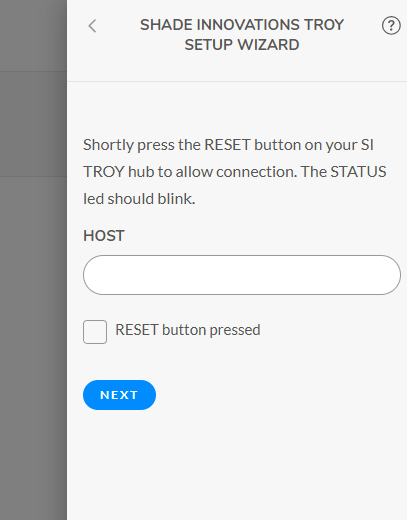
Enter the TRO.Y device’s IP address, then tap the reset button on the front of the TRO.Y. The red LED should begin blinking. Click Next.
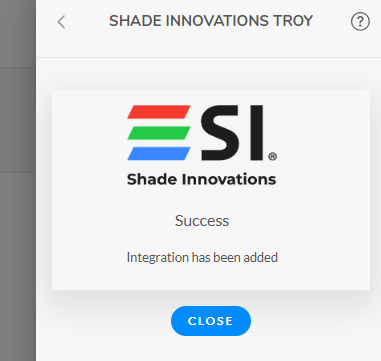
6: Devices Populate in Areas #
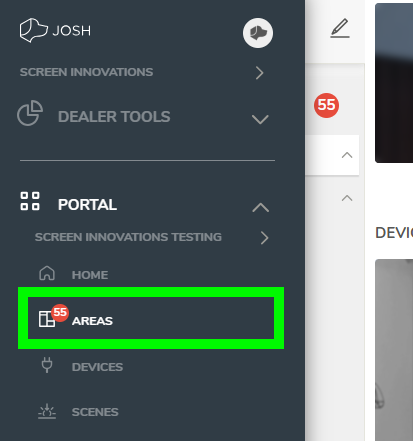
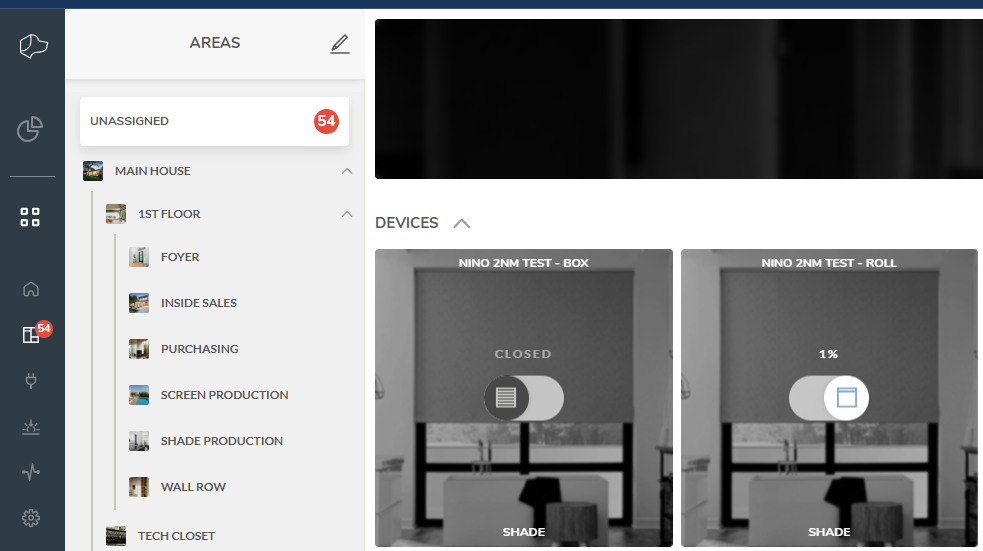
The devices connected to your TRO.Y will populate in the JOSH system under the Areas tab.
7: Assign Devices to Areas #
There are a few ways to assign devices to their area:
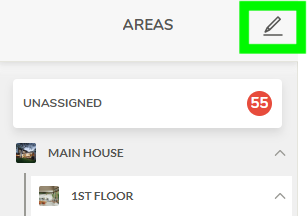
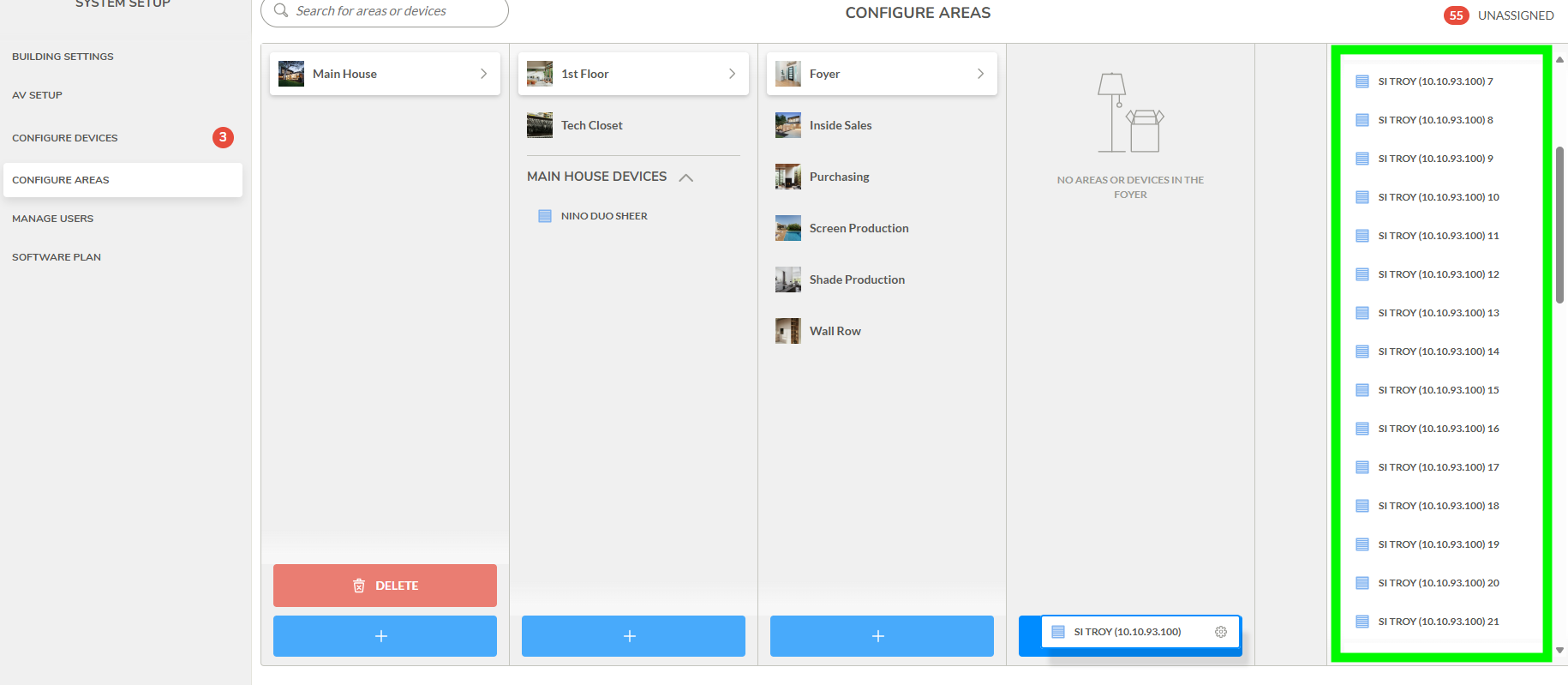
Drag and Drop: Click Configure Areas to organize devices by dragging and dropping them into their respective areas. (Note: You have to drag and drop onto either the blue + button, or red delete button.)
Settings Menu: Click the gear settings icon on the device itself, and assign a room through the drop down menu.
Aliases: You can also assign aliases to your devices to better organize your system.
8: Control Your Devices #
Once configured, you can control TRO.Y devices through the JOSH system using the Areas page, mobile app, or voice commands.
Manual Integration (If TRO.Y is Not Auto-Discovered) #
1: Navigate to Configure Devices #
Navigate to System Setup → Configure Devices.
2: Add Integration #
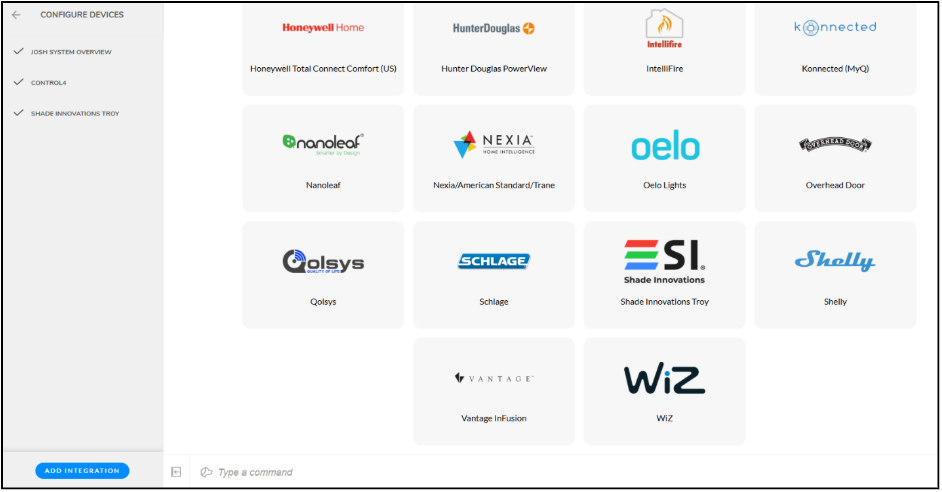
Click Add Integration, then search for and select the Shade Innovations logo.
3: Enter IP Address & Authenticate #
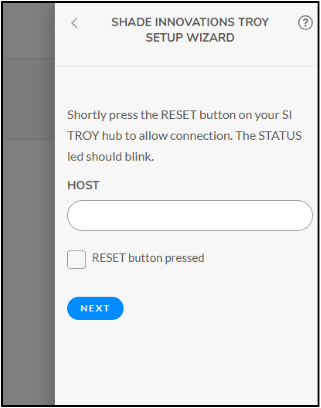
Enter the TRO.Y device’s IP address, then tap the reset button on the front of the TRO.Y. The red LED should begin blinking. Click Next.
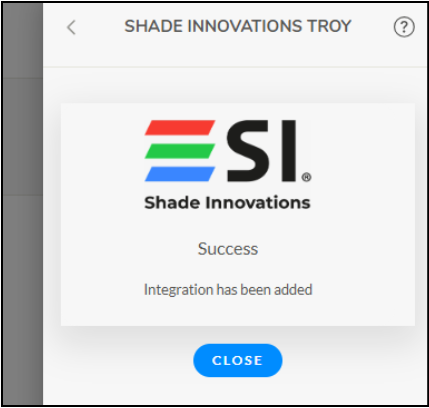
4: Devices Populate #
Devices will begin populating under the Areas tab.
If the TRO.Y device still does not connect, network issues may be preventing JOSH from detecting it. See the Troubleshooting section below.
Troubleshooting Tips #
Common Issues & Solutions #
1: Verify Network Settings
Ensure both TRO.Y and JOSH are on the same network and can communicate with each other.
2: Power Cycle Devices
Power cycle both the TRO.Y and JOSH devices to reset network connections.
3: Confirm LED Status
Confirm the red LED is flashing on TRO.Y when attempting integration. This indicates the device is in pairing mode.