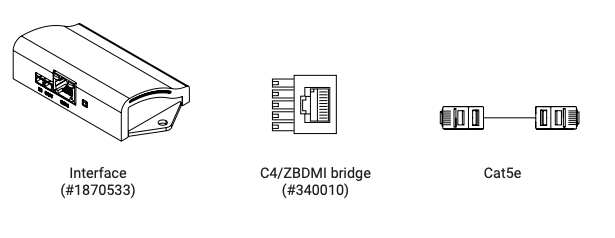
The Somfy C4 Zigbee device is a Zigbee motor interface that enables seamless two-way integration of Somfy motorized shades with Control4 systems. It supports precise control, real-time feedback, and advanced automation features.
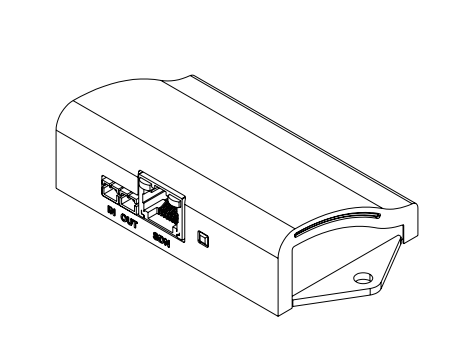
Info: One (1) C4 Zigbee device is required for each motor
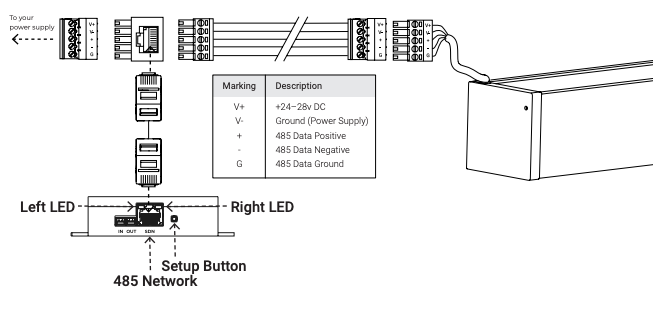
Wiring #
Wiring for DC – 485 Motors: #
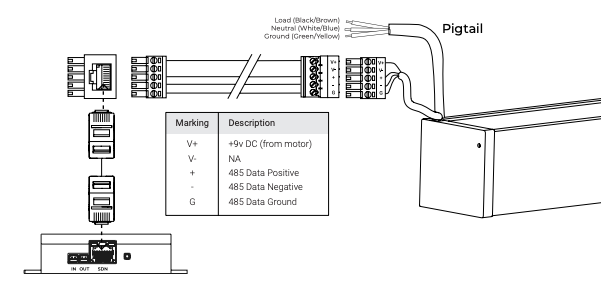
Wiring for AC – 485 Motors (with RJ45): #
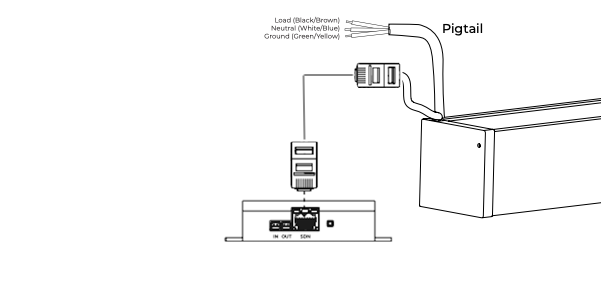
Wiring for AC – 485 Motors (with Phoenix): #
Control4 Software Setup #
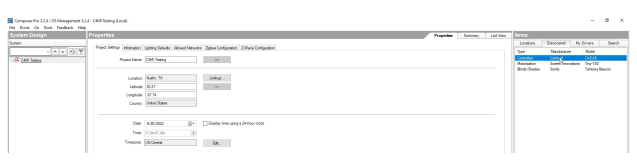
Create project and add processor

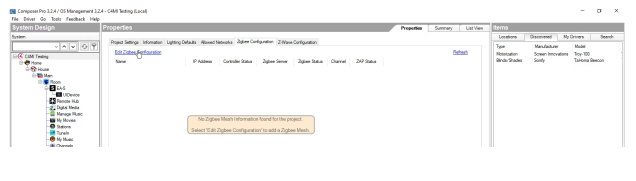
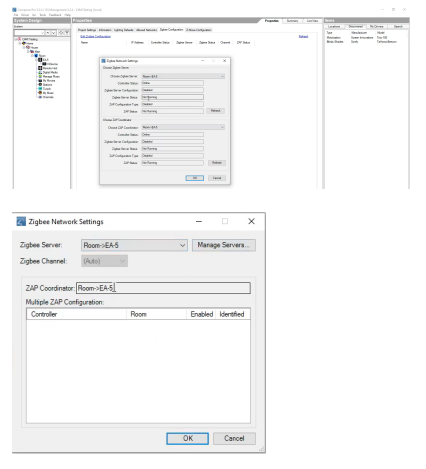
Enable Zigbee server for Control4 Zigbee connectivity
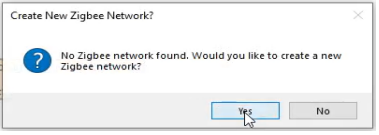
The following message will appear when first adding a Zigbee network:
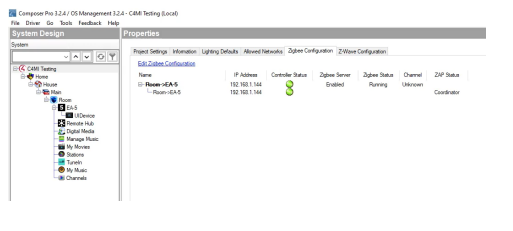
Create Zigbee configuration
Verify the Zigbee connection is running properly:
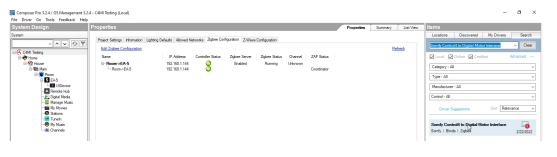
Add the driver
Search for “Somfy Control4 to Digital Motor Interface” and add to project
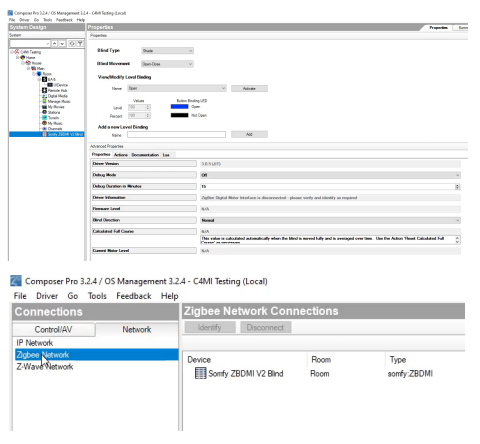
Configure network connections
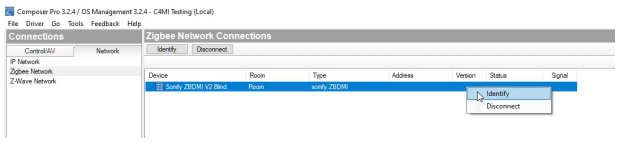
Navigate to Connections > Network > ZigBee Network
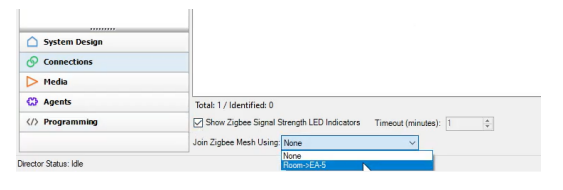
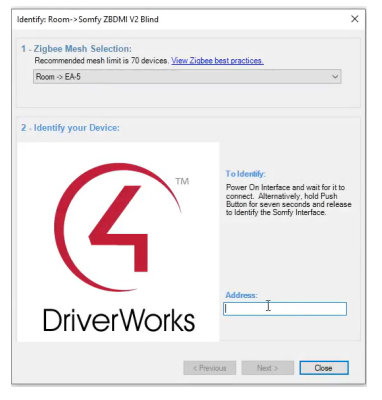
Select Zigbee mesh network
Pair the device
Press and hold the button on the C4 Zigbee device for 5 seconds to enter pairing mode
In Composer, highlight the driver and click “Identify”
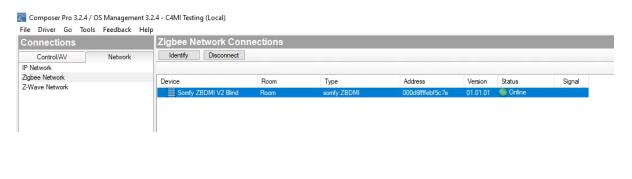
Wait for pairing completion
Verify successful pairing
Test the device
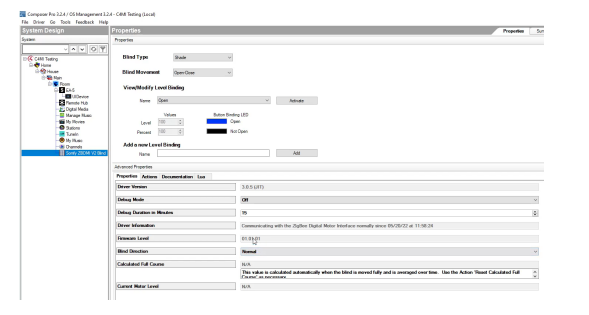
Double-click the driver in the left column to test functionality
Device Setup Guide #
Power-Up Behavior & Firmware Display #
Upon powering up, the RIGHT LED flashes ORANGE to indicate the firmware version:
Example: Version 3.2
3 ORANGE flashes
2 GREEN flashes
The LEFT LED shows power status:
Solid GREEN = Device is powered on
Inclusion Mode (Zigbee Pairing) #
After startup, the RIGHT LED will slowly flash ORANGE, indicating the device is in Zigbee inclusion mode.
If the LED is not flashing, inclusion was unsuccessful. Retry the pairing process.
LED Indicator Overview #
LEFT LED (Power Indicator):
Solid GREEN → Device has power
RIGHT LED (Zigbee/SDN Communication):
Flashing ORANGE → Inclusion Mode
Flashing ORANGE & GREEN → Communicating with motor
Solid ORANGE → Connected to Zigbee network
ORANGE to GREEN → Active Zigbee communication
Disconnecting from Zigbee Network #
Preferred Method:
Use your Control4 interface to issue a disconnect command.Manual Method:
Press and hold the SETUP button for 7 seconds.
The RIGHT LED will begin flashing ORANGE, indicating successful disconnection.
Power Loss Behavior #
If the Control4 Zigbee module loses power, the motor must be rediscovered.
When paired with Janus or other high-capacity power supplies, the system retains device discovery, enabling consistent reconnection.
Operations with Control4 #
Open
Close
Go to Specific Percentage
Stop
Manual Motor Control (via SETUP Button) #
You can manually control the motor at any time using the SETUP button:
Quick Press & Release (within ½ second) cycles through motor commands:
1st Press → Move Down
2nd Press → Stop
3rd Press → Move Up
4th Press → Stop
Example Sequence:
Press once to move the motor down
Press again to stop
Press again to move the motor up
Press again to stop
Factory Reset #
Press and hold the SETUP button for 7 seconds
Release when the RIGHT LED flashes ORANGE
→ The device is now in Inclusion Mode
Note: The Control4 Zigbee Interface defaults to Inclusion Mode when first powered on.
Removing from Zigbee Network #
Press and hold the SETUP button for 7 seconds
When the RIGHT LED stops flashing, the device has been successfully removed from the network
Parts in the Box #